Language Interpreter and Sign
Translator for Educational Needs
Authors:
Jennifer
Crowell
Kulvir
Singh
Abraham
Evangelista
Susan
Philip
Sugnesh
Patel
1.5 Roles and
Responsibilities
2.5 Assumptions and
Dependancies
3.2.1
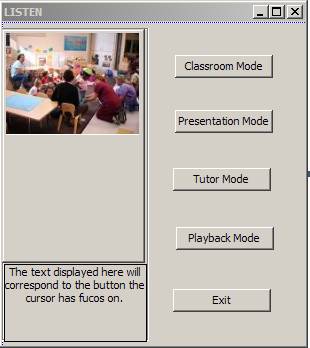
Four Selection Mode Buttons
3.4 Graphic Display Window
Requirements
3.9 Presentation Display
Requirements
3.10 Failure Mode and Error
Handling
3.11 Non-Functional
Requirements
3.11.2
Hardware Recommendations
1
Introduction
1.1
Purpose
The purpose of this document
is to outline and explain the specific requirements that the LISTEN system will
fulfill, as well as the constraints under which the system is operated. Readers
of this document should have a general knowledge of computers and computer
architecture.
1.2
Scope
The Americans with
Disabilities Act was a landmark piece of legislation requiring government and
private business to make appropriate facilities and services available to all
Americans with disabilities. Its scope is vast, requiring that obstacles
in the path of participation for all Americans be removed. While
compliance from a physical standpoint for disabilities of a mobility nature is
easy to gauge, compliance is much less simple for those with hearing
disabilities. Sign language interpreter is not a common choice in
profession, and given the small number of deaf Americans when compared to the
populace in general, it’s no surprise that there’s often no interpreter
available.
Arguments have been put forth
that literate deaf citizens can make use of printed and written materials,
without suffering any ill affects, or disadvantage when compared to their
hearing able counterparts. While this is indeed true in the case of forms
and other written materials, it fails to take into account situations where an
interpreter would be most useful, such as public meetings, lectures, and civil
gatherings. Lack of an interpreter in these cases can lead to deaf
citizens being excluded from public participation in events that affect their
lives.
Also often ignored is the
psychological effect that the lack of an interpreter, can have on an
individual. Forced to rely on written communication or an interpreter, a
deaf individual is forced into a situation where personal autonomy must be
sacrificed as a cost of entrance into society. This is both inconvenient,
and more importantly unjust.
LISTEN will not be a panacea
for deaf-hearing communications. The limited scope of the project
necessarily means that the communication is one way. But as a piece of
software utilized to allow a deaf individual the opportunity to provide himself
with the ability to provide his own interpretation, LISTEN will provide both
personal utility, and personal empowerment to deaf individuals.
1.3
Definitions
GUI: Graphical User Interface.
LISTEN: Language Interpreter and Sign Translator for
Educational Needs.
ASL: American Sign Language. This version of Sign
Language does not have the same grammatical structure as the conversational
English used by the non-deaf community.
Signed English: Signed English is a version of Sign Language that
shares the same grammatical structure as the conversational English used by the
non-deaf community.
Fingerspelling: The act of translating a word using the sign
language alphabet.
Interpreter: A member of the non-deaf community whose
occupation is to translate spoken word into either Signed English or ASL for a
member of the deaf community.
1.4
Overview
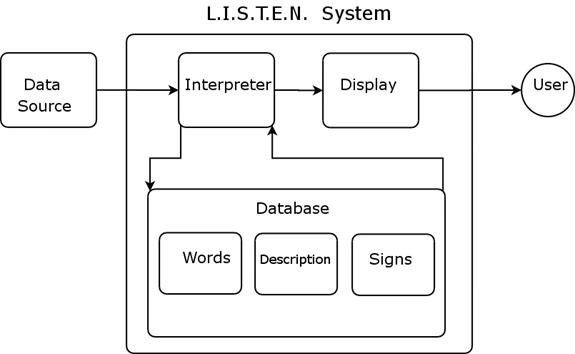
This document outlines the
LISTEN project with respect to functionality and context. It details the
system entities, data flow, and human interfaces of the project.
Interface demonstrations have been created, though are subject to change
through the full development process.
1.5 Roles and Responsibilities
Jennifer Crowell - Project
Lead, System Designer. Currently employed as a developer for Lockheed
Martin, Jennifer brings to this project both her extensive experience as
developer and her personal connection to the deaf community.
Abraham Evangelista - Video
Producer, Documentation Lead. Having lived and worked with language
disparate groups, Abraham is all too familiar with the difficulties that
language barriers present. His work in television industry will provide
video production expertise to this project.
Sugnesh Patel - Integration
Specialist, Tester. As a speaker of several languages, Sugnesh is aware
of the difficulties involved in multilingual communication. Along with
his experience with the .net development platform, Sugnesh also brings to this
project his extensive experience as a tester and system integrator.
Susan Philip - Lead Tester,
Quality Assurance. Susan was responsible for developing the prototype and
testing the projects during her co-op with Blue Cross. She also holds a
bachelor‘s degree in Computer Application from Marian College in India and was
part of the senior project team. She brings to the project her
interest in application development, and a keen eye for vigorous testing.
Kulvir Singh - Interface
specialist. Kulvir worked in the Software Integration and Testing group
at Comcast his last co-op as a GUI Tester and MFC application bug fixer. His
responsibilities include the implementation of the GUI interface for the LISTEN
system and creating the help files.
2
Overall
Description
2.1
Product Perspective
LISTEN software is not self-contained and uses third party
software for the speech to text conversion.
2.2
Product Functions
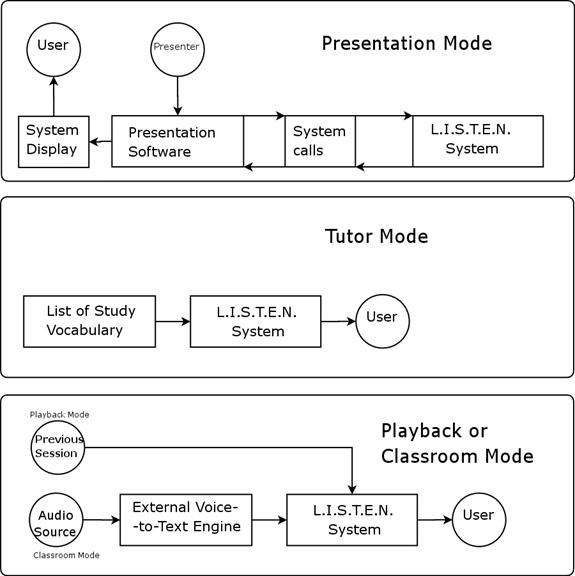
LISTEN aids
the physically challenged by converting the vocal speech to a more familiar
language sign. There are 4 modes for the application.
2.2.1 Classroom Mode
This mode is
used by students in class. The
instructor’s voice is converted to sign and then displayed in the students
monitor.
2.2.2 Presentation Mode
This mode is used by speakers during their presentation, in
conjunction with external presentation software such as Microsoft’s Office
Power Point, or Open Office Impress. The presenter’s speech is converted to
sign and be displayed.
2.2.3 Tutor Mode
This mode is
used by students that wish to learn sign language. The user clicks on a letter
or word and the sign’s graphic is displayed.
2.2.4 Playback
This mode plays back a previously saved session.
2.3
User Characteristics
The users for the software are the hearing-impaired, prospective
students of sign language, and presenters.
2.4
Constraints
There
are no constratins that need to be taken into consideration for this project.
2.5
Assumptions and Dependancies
LISTEN software depends upon third party software package to
convert sound into text.
2.6
Development Model
The Waterfall development model will be used for the development
of the LISTEN software.
3
Functional
Requirements
3.1
Speech to Text Converter
LISTEN
requires third party software to convert from speech to text. This software
should at least encompass the English Sign Language vocabulary. This software
must run on all Microsoft Windows 2000 and up.
3.2
Graphical User Interface
This section
describes the look and feel of the LISTEN GUI.
3.2.1 Four Selection Mode Buttons
At the start
of the application, the following buttons are displayed:
3.2.1.1 Classroom Mode
Selecting this
mode displays the Graphic Display Window, and begins interpretation from the
audio source.
3.2.1.2 Tutor Mode
Selecting this mode displays the Tutor
Window.
3.2.1.3 Presentation Mode
This mode is
used to integrate with presentation software such as Microsoft Power Point, or
Open Office Impress. Selecting this mode
displays the Graphic Window Display with only the upper pane, overlaying the
presentation software, and begins interpretation from the audio source.
3.2.1.4 Playback Mode
This mode displays the full Graphic Display Window, opens a file
selection window, and prompts the user to select a previously saved session.
3.2.1.5 Exit
Selecting this button will terminate the program, and the third
party speech-to-text application.
3.3
Graphic Display Window
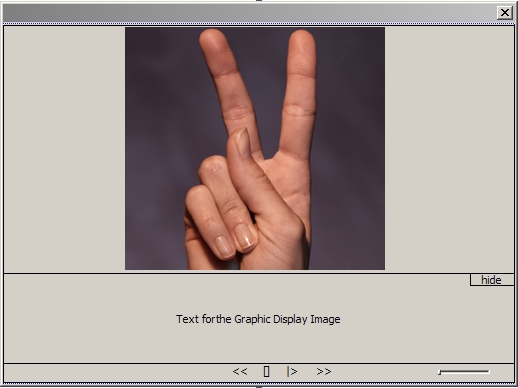
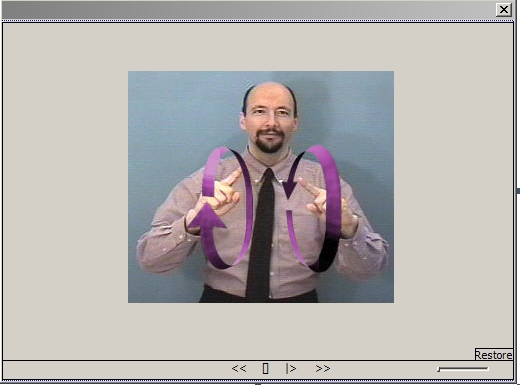
The Graphic
Display Window has two panes. The upper window displays the graphic output. The
lower window displays the English text that is being translated to Signed
English. There is a control bar
containing the Play, Pause, Rewind, Forward, Replay buttons and Speed Slider.
3.3.1 Tutor Window
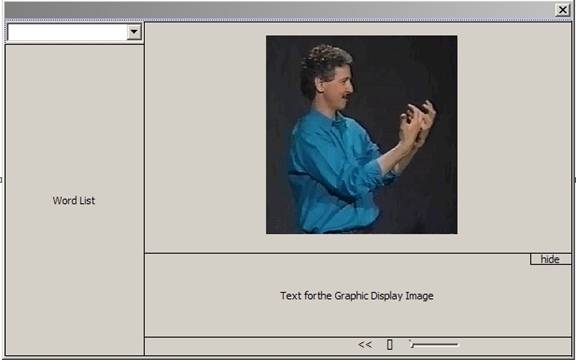
The tutor
window contains Graphic Display Window, in addition to a list of all the
English words in the current dictionary.
3.3.2 Presentation Display
The graphic
output is displayed on the presentation screen.
3.4
Graphic Display Window Requirements
The
window has the following parts
3.4.1 Upper Window Pane
This pane displays the video or graphic clip. The window is large
enough to see the complete output clearly.
3.4.2 Lower Window Pane
This window
pane displays based on the mode any two of the following
·
English
text that is being translated to Signed English.
·
Text
Description of the video or graphic clip when in Tutor mode.
·
Hide
Button which hides the Lower Window Pane
3.5
Control Bar
The control bar is displayed on the bottom of the
Graphic Display Window. The bar contains the following components:
3.5.1.1 Play and Pause Button
The play button plays the Video or Graphic clip. While the video or
graphic clip is playing, the Play text changes to Pause. The Pause button
pauses the graphic display output.
3.5.1.2 Rewind Button
The rewind button stops playback, and then resume displaying from a
previous sign. The user determines how
many signs previous that play resumes from, by how many times he clicks.
3.5.1.3 Forward Button
The forward button stops playback and then resume playing from a later
sign. This button is only active while the sign being displayed is not the last
sign.
3.5.1.4 Stop Button
The stop button ends graphic output.
When the user clicks the play button, play resumes from the beginning of
the session.
3.5.1.5 Speed Slider
The user uses the speed slider to slow the speed of
graphic output. The default speed is the
fastest speed.
3.6
Window Dimensions
The
window dimensions are as follows:
·
The Graphic
Display Window is divided horizontally.
·
The Upper Window
Pane fills 80 percent of the window area.
·
The Lower Window
Pane fills the remaining 20 percent of the window area.
·
The Pixel Size
of the Graphic Display Window is determined by the current display resolution
of the system running LISTEN.
·
The Graphic
Display Window has a fixed 4:3 height-to-width ratio.
·
Users cannot
alter the dimensions of the graphic display window, except to select full
screen mode.
·
The Graphic Display
Window can be full-screened by double clicking the graphic display. Doing this causes the Graphic Display Window
to increase in size to the current display resolution and to overlay all other
existing windows.
·
LISTEN can be
minimized.
·
The Graphic
Display Window occupies 33% of the screen.
3.7 Window Behavior
The
window behaves as follows:
·
The Graphic
Display Window is not resizeable.
·
The graphic
display window will ‘snap’ to corners of the display.
·
Upon closing, if
the program is operating in Classroom or Presentation mode, the Graphic Display
Window will prompt the user to save the session to the file. Saving the session will write the tokens to a
comma delimited text file.
3.8
Tutor Window Requirements
The tutor
window contains the following elements:
3.8.1 Graphic Display Window
Tutor
Window has all the Graphic Display Window Requirements. The graphic clip is
displayed for the selected word form the Expandable Word List.
3.8.2 Vertical Window Pane
This
is on left side of the Graphic Display Window.
This contains the following elements:
3.8.3 Options Combo Box
This combo box
contains selections for Category, Sign English Dictionary, and Alphabets and
Numbers.
3.8.4 Expandable Words List
This contains
the list of words. The list displays words depending on the selected option
from the combo box. These words are
drawn from the word/symbol database. The
Options contained in the combo box selection are:
3.8.4.1 Category
Selecting this
option in the Options Combo Box displays all the Signed English categories.
3.8.4.2 Signed English Dictionary
Selecting this
option in the Options Combo Box displays all the English words that exist in
Signed English.
3.8.4.3 Alphabetic and Numeric Characters
Selecting this
option in the Options Combo Box displays the English alphabet and numbers
3.9
Presentation Display Requirements
3.9.1 Presentation mode
- Presentation mode displays only the Graphic
Display Window.
- The Graphic Display Window overlays
the external presentation software window.
3.10Failure Mode and Error
Handling
3.10.1 Third Party Software
- LISTEN relies on third
party software to convert from spoken language to text formatted
data. Failure of this software will
not affect LISTEN.
- LISTEN handles the
launching and closing of the speech-to-text application.
- LISTEN monitors the
status of the speech-to-text application.
- If the speech-to-text
application crashes or hangs, LISTEN stops the application’s process and
restarts the speech-to-text application.
3.10.2 Error Handling
- If the speech-to-text
application produces a symbol that is not in the LISTEN dictionary, and
cannot be fingerspelled, LISTEN can handle this token.
- LISTEN displays a
symbol indicating an unknown token and continues to parse the stream.
- Listen writes the token to the database for
later analysis.
3.11 Non-Functional Requirements
3.11.1 Hardware Requirements
- Microsoft Windows 2000 or later.
- Pentium-4 1.5Ghz or equivalent.
- Minimum memory of 256 MB.
- “Supported” Microphone.
3.11.2 Hardware Recommendations
- Monitor capable of displaying at a resolution of 1280x800 or
better.
- 2.0Ghz or Multiprocessor system.
- 1.0GB RAM.
4
System Evolution
System
evolution refers to the dynamic behavior of software systems as they are
maintained and enhanced over their lifetimes and is particularly important as
systems in organizations become longer-lived. Following are the areas we have
identified so far where system evolution has a scope.
4.1
Other Languages
Currently the
application supports Signed English. There is scope to extend the software to
support other sign languages.
4.2
Platform Independence
Due to system
calls within the application, the current application is not fully platform
independent. But future updates using platform independent techniques are
possible.
4.3
Real time Learning
The
application can be further developed as a real time learning tool, which does
not require the student to be physically present in the class and thus
facilitates distance learning.
4.4
Finger Spelling for Words
English Sign
Translation Mode can be further extended to include the finger spelling
graphics for the included words, rather than only for words that are not in the
dictionary.
5
Use Cases
.